
Map and search
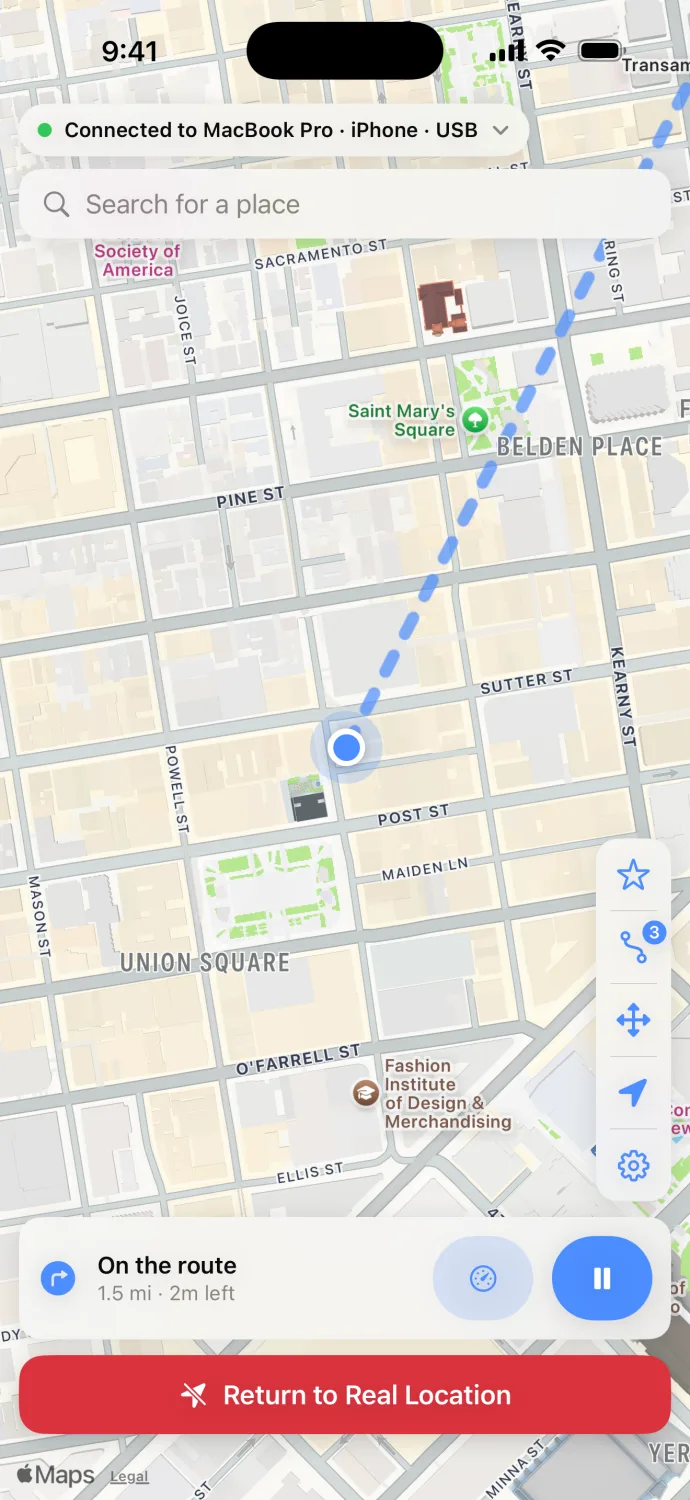
Browse the map and search for places. The search runs on your computer: Apple Maps on Mac, Photon on Windows.
Free iPhone and iPad app
Control Geovo on your Mac or Windows PC from your iPhone or iPad, over your Wi-Fi. Pick a place, start a route or steer with the joystick without going back to the computer.

Free, with no purchases inside.
Works with Geovo for Mac or Windows. Download Geovo for your computer
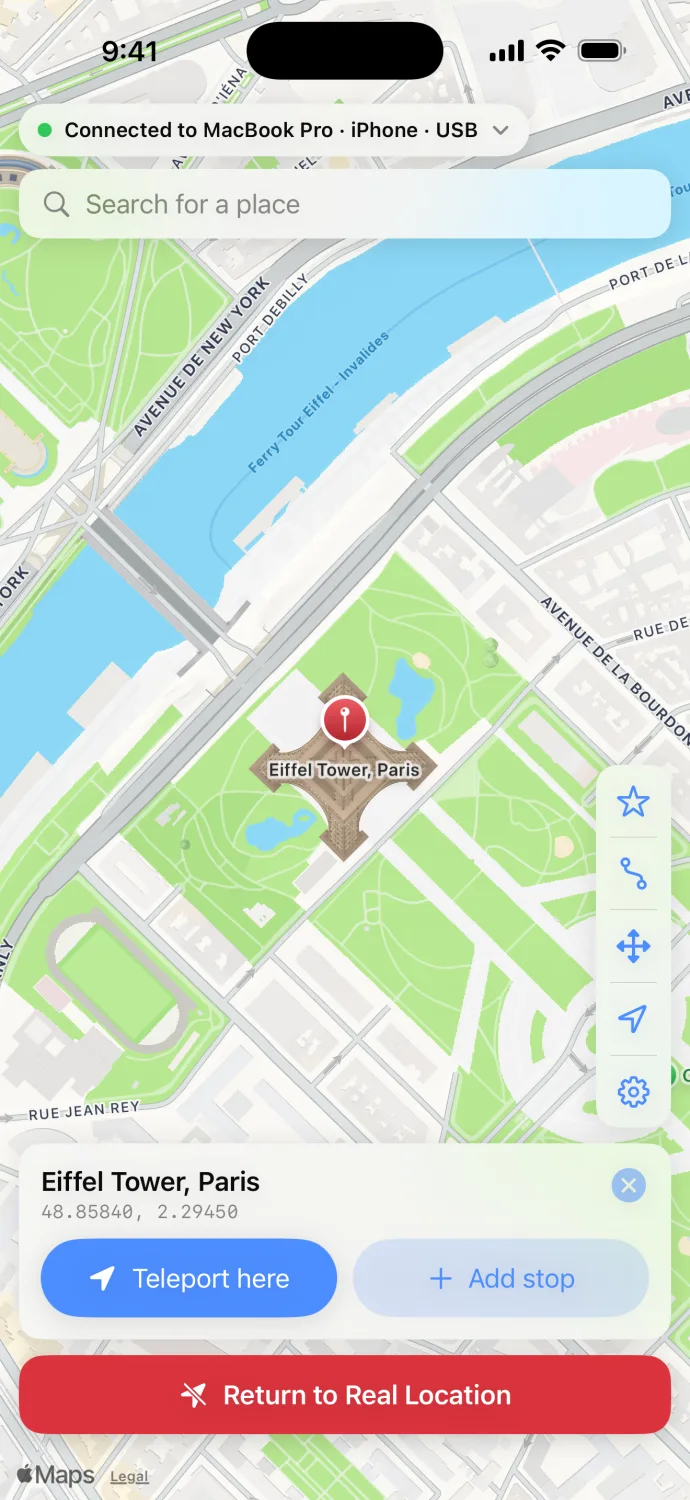
Browse the map and search for places. The search runs on your computer: Apple Maps on Mac, Photon on Windows.
Tap a place and send it to Geovo on your computer in one step.
Plan multi-stop routes at walking, cycling or driving speed, then pause and resume them.
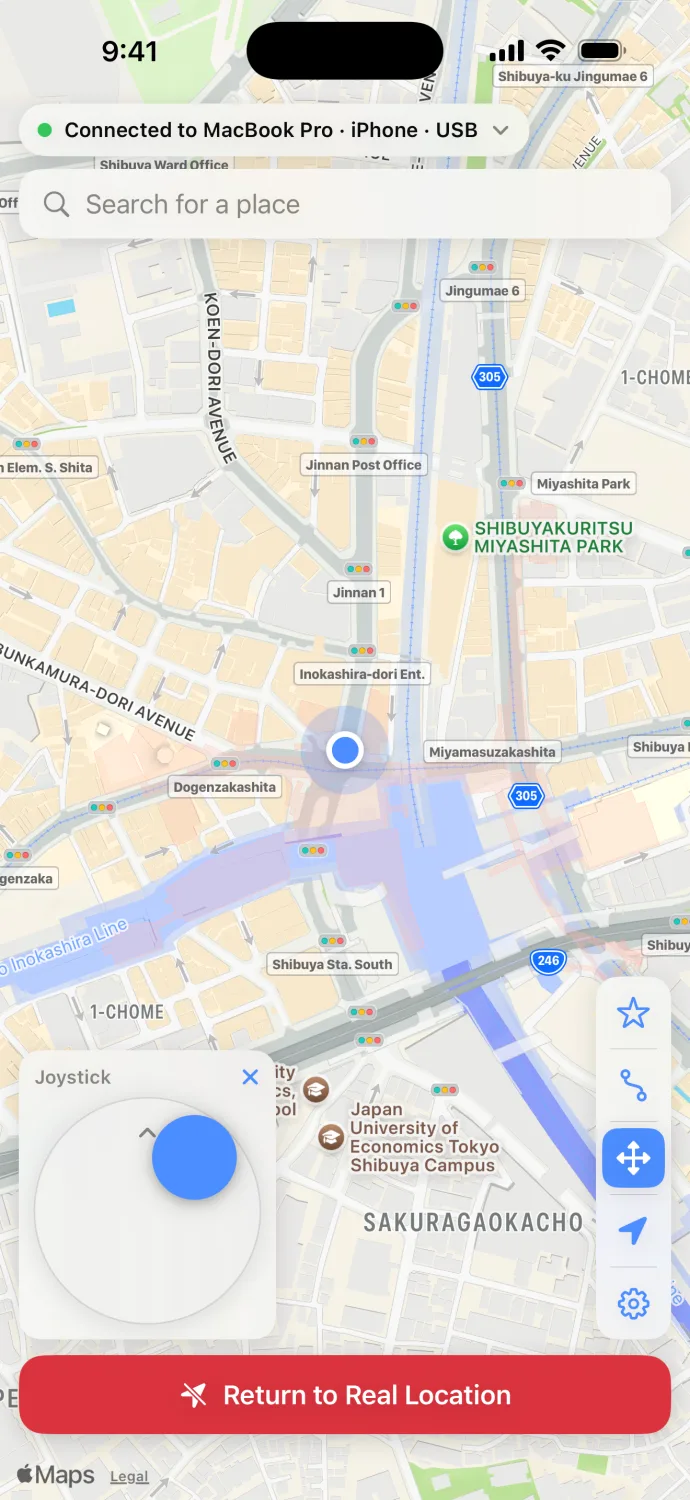
Steer the simulated position by hand, at the speed you choose.
Use the saved places and trips you already have in Geovo on your computer.
Always on screen, one tap away, with the computer's status (connected, simulating, paused).
Four tools that work on the iPhone or iPad by itself. With your permission they read the device's own location, keep everything on the device and don't change any location.
Open .gpx and .kml files from Files, Mail or AirDrop, keep saved routes and export them as GPX, KML or CSV. With a computer paired, Play on Geovo sends a route (up to 200 stops) to Geovo after you confirm.
Coordinates (decimal, DMS and DDM), accuracy, altitude, speed, course and heading, plus the source flags iOS reports, so testers can check their setup.
Record a trip you start, with waypoints, even with the screen locked, and save it as GPX. Each point is written as it arrives. Uses GPS and more battery while it runs.
Set up to 5 zones, then log enter and exit events with times: iOS's own events beside the app's check, exportable as CSV. iOS reports these with some delay.
Developers and QA testers can move a test device from the phone in their hand while they watch the app react, without reaching for the computer.
Show a location feature to a client or a room from your phone while the computer stays on the desk.
Look around a city you're about to visit and try routes from the sofa.
Download Geovo for Mac or Windows from geovo.app/download and open it.
In Geovo on your computer, open Settings › Geovo Remote and turn it on. A pairing QR code appears.
Open Geovo Remote on your iPhone, tap Scan QR code, point the camera at the code and tap Pair. Allow Local Network and the camera when iOS asks. Next time it connects by itself.
Most problems come from the network or a permission. Check these in order.
The iPhone and the computer must be on the same Wi-Fi network. Guest networks, and some office or hotel networks, keep devices from seeing each other: use your main network.
On the Mac, open System Settings › Privacy & Security › Local Network and turn on Geovo.
Set your Wi-Fi network to Private (Settings › Network & internet › Wi-Fi › your network › Private network), then allow Geovo on Private networks in Windows Security › Firewall & network protection › Allow an app through firewall.
On the iPhone, open Settings › Privacy & Security › Local Network and turn on Geovo Remote.
Geovo must be open on the computer, with Settings › Geovo Remote on, and the computer awake (not asleep or with the lid closed).
Turn Geovo Remote off and on again in Settings on the computer, then scan the QR code again. If it still won't connect, email support@geovo.app.
Questions or problems? Email support@geovo.app
Using Geovo Remote? Rate it on the App Store